Mastering macOS Code Signing: Secure Your Apps for Distribution
macOS code signing is a fundamental security mechanism that verifies the origin and integrity of your applications. Understanding this process is crucial for any developer aiming to distribute software on Apple platforms. This guide provides an in-depth look at code signing, from certificate management to automation.
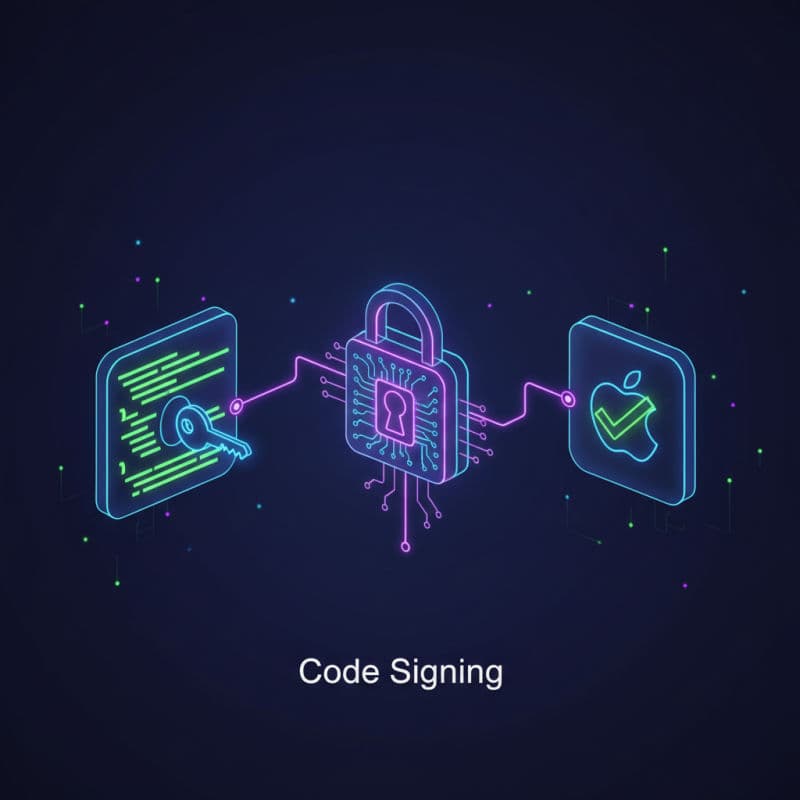
What is macOS Code Signing and Why is it Essential?
macOS code signing is a cryptographic security technology that allows developers to digitally sign their applications, frameworks, and executables. This signature acts as a tamper-evident seal, assuring users (and macOS itself) that the software comes from a known developer and hasn't been altered since it was signed. For macOS, particularly since the introduction of Gatekeeper, unsigned or improperly signed applications face significant hurdles in running on a user's machine.
Gatekeeper, a core security feature of macOS (introduced in OS X Mountain Lion, 10.8), enforces varying levels of security policies regarding app execution. By default, it allows apps downloaded from the Mac App Store and identified developers. When an application is launched, Gatekeeper checks its signature. If the signature is valid and from an 'identified developer' (meaning you've enrolled in the Apple Developer Program), the app is generally allowed to run. Without a valid signature, users will likely encounter warnings like '"[App Name]" cannot be opened because the developer cannot be verified,' making installation and trust difficult.
Beyond Gatekeeper, code signing is critical for several other reasons:
- Integrity: It ensures that your application hasn't been modified or corrupted after you've signed it. Any change, even a single byte, invalidates the signature.
- Identity: It ties your application to your developer identity, helping users trust the source of the software.
- Entitlements: Many advanced macOS features, such as sandboxing, iCloud integration, App Store Receipt Validation, and Push Notifications, require specific entitlements that are embedded and enforced through code signing.
- App Store Submission: It's a non-negotiable requirement for submitting apps to the Mac App Store. Apple's automated validation processes will reject any app that isn't correctly signed.
- Notarization: For apps distributed outside the Mac App Store, notarization (introduced in macOS Mojave 10.14.5 and becoming mandatory in Catalina 10.15) requires proper code signing before Apple will notarize your app. Notarization adds an additional layer of trust by having Apple automatically scan your app for malicious content.
Understanding Code Signing Identities and Certificates
At the heart of code signing are your signing identities, which consist of a developer certificate and a private key. These assets are stored in your macOS Keychain Access. When you sign your code, macOS uses your private key to create a cryptographic signature. Later, when a user launches your app, macOS uses the corresponding public key (embedded in your certificate and verifiable by Apple's root certificates) to decrypt and verify the signature.
There are several types of code signing identities you'll encounter:
- Apple Development: Used for debugging and running applications on your own development machines. You'll use this for local testing.
- Apple Distribution: Used for submitting applications to the Mac App Store or for distributing them outside the Mac App Store (e.g., direct download from your website, often referred to as 'Developer ID' signing when used with Developer ID certificates).
- Developer ID Application: Specifically designed for distributing macOS apps outside the Mac App Store. This certificate type allows your app to pass Gatekeeper checks on users' machines, provided it's also notarized. This is the most common certificate you'll use for non-App Store distribution.
- Developer ID Installer: Used to sign installer packages (
.pkgfiles) for apps distributed outside the Mac App Store. This ensures the integrity of the installer itself.
When you build your app in Xcode, it automatically attempts to select the correct signing identity based on your project's build settings (e.g., 'Debug' configurations typically use 'Apple Development', while 'Release' or 'Archive' configurations use 'Apple Distribution' or 'Developer ID'). You manage these certificates and provision profiles through your Apple Developer account and Xcode.
To view your installed certificates, open 'Keychain Access.app' on your Mac and look under the 'Certificates' category. You'll see entries like 'Apple Development: [Your Name] ([Team ID])' and 'Developer ID Application: [Your Name] ([Team ID])'. Each certificate has a corresponding private key, without which you cannot sign code.
If you need to revoke a certificate or create a new one, you do so via your Apple Developer Account portal. Remember that revoking a certificate invalidates all apps signed with it, so exercise caution.
Entitlements: Granting Capabilities to Your macOS App
Entitlements are key-value pairs that grant specific capabilities and permissions to your macOS application. They are an essential part of the modern macOS security model, allowing your app to access system resources or utilize certain services that would otherwise be restricted by the sandbox. When you code sign your app, these entitlements are 'sealed' into the executable. macOS then uses these embedded entitlements to determine what your app is allowed to do.
Common entitlements include:
com.apple.security.app-sandbox: Enables the App Sandbox, restricting your app's access to user data and system resources.com.apple.security.network.client: Allows your app to open outgoing network connections.com.apple.security.network.server: Allows your app to accept incoming network connections.com.apple.security.device.camera: Grants access to the camera.com.apple.security.files.downloads.read-write: Allows read-write access to the user's Downloads folder.
You define entitlements in an .entitlements file within your Xcode project. Xcode automatically manages associating this file with your targets. When you build your app, Xcode processes this file and embeds the entitlements into the code signature. If you try to use an API or access a resource without the necessary entitlement, your app will likely crash or fail silently.
Here's a simple example of an entitlements file (MyApp.entitlements) that enables sandboxing and outgoing network connections:
It's crucial to only request the entitlements your app genuinely needs, adhering to the principle of least privilege. Over-requesting entitlements can make it harder for your app to pass App Store review and potentially expose it to security risks if vulnerabilities are found in features that shouldn't have been accessible.
Code Signing Your macOS Application with Xcode
Xcode generally automates the code signing process, making it straightforward for most developers. When you create a new project, Xcode automatically configures basic signing settings. However, you'll need to understand how to verify and adjust these settings.
-
Configure Signing & Capabilities: Open your project in Xcode. Select your project in the Project Navigator, then choose your target. Go to the 'Signing & Capabilities' tab. Here, ensure 'Automatically manage signing' is checked. Select your 'Team' from the dropdown. Xcode will then attempt to create or select the appropriate signing certificate (Apple Development for debugging, Developer ID Application for distribution).
If you encounter issues, such as 'No signing certificate found,' you may need to visit your Apple Developer Account portal to create a new certificate or ensure your existing one is correctly installed in your Keychain Access.
-
Add Entitlements: If your app requires special capabilities (like sandboxing, iCloud, or network access), you'll add them directly from the 'Signing & Capabilities' tab. Click the '+' button to add new capabilities. Xcode will automatically generate or update your
.entitlementsfile. -
Building for Distribution (Archiving): When you're ready to create a distributable version of your app (either for the Mac App Store or for notarized direct distribution), you use the 'Archive' command. Select 'Product > Archive' from the Xcode menu. Xcode will build your app, apply the appropriate distribution signing identity, and then present the Organizer window.
From the Organizer, you can choose to 'Distribute App'. Xcode will guide you through the process, prompting you to select a distribution method (e.g., 'Mac App Store' or 'Developer ID'). For Developer ID distribution, Xcode will also handle the notarization process with Apple.
Here's a quick checklist for Xcode signing:
- Verify your Apple Developer Program membership. (Required)
- Ensure your 'Team' is selected in Project -> Target -> Signing & Capabilities.
- Have 'Automatically manage signing' enabled (recommended).
- Address any signing errors reported by Xcode in the 'Signing & Capabilities' tab or the Issue Navigator.
Always perform a clean build ('Product > Clean Build Folder') if you experience persistent signing issues, as old build artifacts can sometimes interfere.
Manual Code Signing with codesign and productbuild
While Xcode handles most signing, understanding the command-line tools codesign and productbuild is invaluable for advanced scenarios, automation, and troubleshooting. Both are available in /usr/bin/.
codesign: Signing Executables and Bundles
codesign is the primary command-line tool for manually signing and verifying code. You can use it to sign individual executables, frameworks, or entire application bundles. The -s flag specifies the signing identity.
First, list your available signing identities:
This command will output a list of your signing identities, looking something like this:
  1) BA12C34DEF567890ABCDEF123456789012345678 "Developer ID Application: Your Name (ABC123DEF9)"
  2) F67890ABCDEF1234567890ABCDEF1234567890AB "Apple Development: Your Name (ABC123DEF9)"
     2 valid identities found
Copy the full string for your desired identity (e.g., 'Developer ID Application: Your Name (ABC123DEF9)').
To sign an application bundle (e.g., MyApp.app):
Let's break down the flags:
--force: Replaces any existing signature.--options runtime: Applies the hardened runtime, a mandatory security feature for notarization on macOS Mojave 10.14.5+ and later. This enables important protections against code injection and memory corruption.--deep: Recursively signs all nested code within the bundle (executables, frameworks, plugins, libraries). While convenient, Apple recommends signing inner bundles individually for robustness in complex apps. However, for simpler apps,--deepis often sufficient.--sign "[Your Signing Identity]": Specifies the identity to use.
To verify a signature:
--verbose=4 provides detailed output, including entitlements. A successful verification will show valid on disk and satisfies its designated requirement.
productbuild: Signing Installer Packages
After signing your .app bundle, you might want to package it into a .pkg installer. The productbuild command can create and sign these installers.
First, you need to create an unsigned package:
Here:
--component "/path/to/MyApp.app" /Applications: Specifies the application to package and its installation destination.--sign "Developer ID Installer: Your Name (ABC123DEF9)": Crucially, you must use a 'Developer ID Installer' certificate to sign the.pkgfile itself, not a 'Developer ID Application' certificate.
To verify a signed and notarized .pkg file, you can use spctl:
This command will check if the package is notarized and valid. A successful output for a notarized package would be accepted.
Notarization: The Next Step Beyond Code Signing for macOS Distribution
Notarization is a security measure introduced by Apple, making it mandatory for all macOS software distributed outside the Mac App Store starting with macOS Catalina 10.15. Even if your app is flawlessly code signed with a Developer ID certificate, it will not run without a notarization ticket (and will prompt Gatekeeper warnings) on current macOS versions.
How Notarization Works:
- Code Sign Your App: First, your application (and any nested code, like frameworks or command-line tools) must be correctly code signed with your 'Developer ID Application' certificate and the hardened runtime enabled.
- Package Your App: You then create a
.dmgdisk image or a.pkginstaller containing your signed application. For.pkginstallers, the installer itself must be signed with your 'Developer ID Installer' certificate. - Upload to Apple: You upload this package (the
.dmgor.pkgfile) to Apple's notarization service. - Automated Scan: Apple's service automatically scans your software for malicious content, common code signing issues, and other security problems.
- Staple the Ticket: If the scan passes, Apple issues a notarization ticket. You then 'staple' this ticket to your application's package binary, making it part of the distributable bundle. This allows Gatekeeper to verify notarization even when offline.
Xcode automates the notarization process when you 'Distribute App' using the 'Developer ID' option. However, for command-line workflows, you'll use xcrun altool.
Notarizing via Command Line:
-
Create an Archive (Product Build): Create your
.dmgor.pkgfile locally, ensuring it's properly code-signed with the hardened runtime. -
Upload for Notarization: Use
xcrun altoolto upload your package. You'll need an App-Specific Password for your Apple ID, which you can generate onappleid.apple.comunder 'Security'.
--primary-bundle-id: The main bundle identifier of your application.--usernameand--password: Your Apple ID and an App-Specific Password. Storing the password in Keychain is recommended.
- Check Notarization Status: The upload command returns a RequestUUID. Use this to check the status:
Wait until the status is 'success'. You'll also receive an email from Apple.
- Staple the Ticket: Once 'success', staple the ticket to your original package file:
Now your .pkg file is notarized and ready for distribution. When a user downloads and attempts to run it, Gatekeeper will see the valid stapled ticket and allow it to execute without security warnings, significantly enhancing user trust and experience.
Common Interview Questions
What's the difference between 'Apple Development' and 'Developer ID' certificates?
'Apple Development' certificates are for developing and debugging your apps on your own machines. 'Developer ID' certificates (Application and Installer types) are specifically designed for distributing macOS apps outside the Mac App Store, allowing them to pass Gatekeeper checks on users' machines after being notarized by Apple.
My app says 'developer cannot be verified' even after I code signed it. What's wrong?
If you're distributing outside the Mac App Store on macOS Catalina (10.15) or later, proper code signing with a Developer ID certificate is a prerequisite, but it's not enough. Your app *must also be notarized* by Apple to run without the 'developer cannot be verified' warning. Ensure you've completed the notarization process and stapled the ticket to your application bundle or installer.
What is the 'hardened runtime' and why is it important?
The hardened runtime is a security measure in macOS (mandatory for notarization since macOS Mojave 10.14.5). It applies additional restrictions to your app, making it more resilient to code injection, process memory tampering, and other attacks. You enable it during code signing via Xcode's 'Signing & Capabilities' or using the `--options runtime` flag with `codesign`.
How do I deal with nested frameworks or command-line tools inside my main app bundle for code signing?
While `codesign --deep` can sign nested code, Apple recommends signing frameworks, helpers, and command-line tools *individually* from the 'inside out' (i.e., sign the deepest components first, then their parent, until you sign the main app bundle). Xcode handles this automatically for standard project structures. If you're using custom build scripts or third-party binaries, you may need to apply `codesign` commands to each component before signing the main application.