Mastering UIApplication: Your App's Central Command Center
UIApplication is the cornerstone of every iOS application, serving as the central controller that manages the app's lifecycle, dispatches events, and coordinates with the system. Understanding its role and capabilities is crucial for building robust and responsive applications, whether you're using UIKit or SwiftUI.
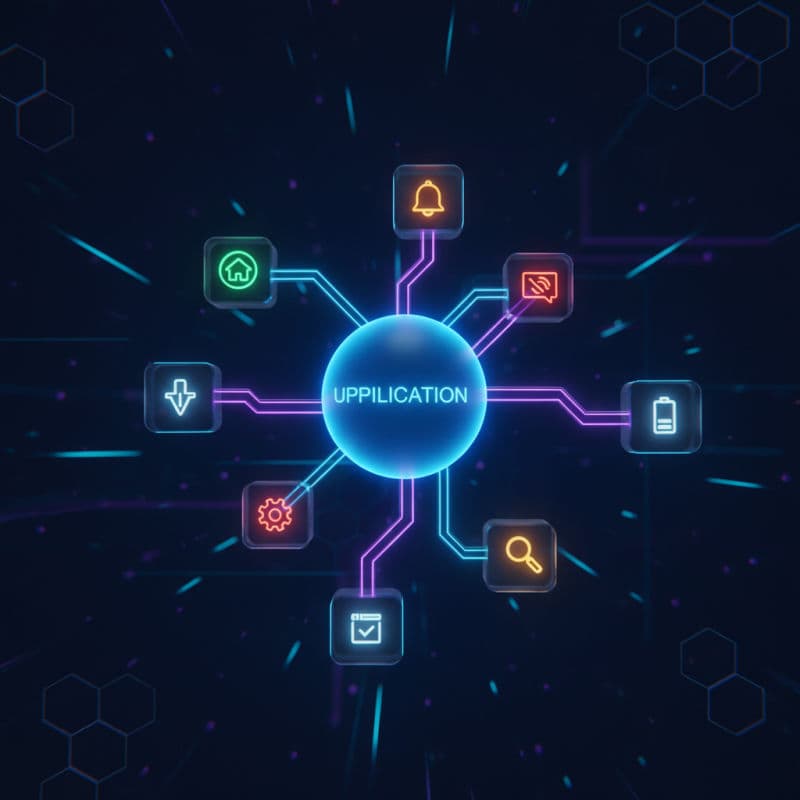
Introduction to UIApplication: The Heart of Your iOS App
Every iOS application, whether built with UIKit or SwiftUI, has a single instance of UIApplication (or its subclass, NSApplication on macOS). This object is the fundamental control mechanism for your app, acting as the centralized dispatcher for incoming events and the coordinator for system-level interactions. Think of it as the main loop or the operating system's direct interface to your running application.
UIApplication is responsible for a myriad of essential tasks, including:
- Event Handling: It receives raw input events (touches, motion, remote control) and routes them to the appropriate responder objects within your app, such as
UIWindow,UIView, andUIViewController. - App Lifecycle Management: It notifies your
AppDelegate(orAppstruct in SwiftUI) about crucial lifecycle changes, such as launching, entering the background, becoming active, or terminating. - URL Scheme Handling: It processes custom URL schemes, enabling inter-app communication.
- System Interactions: It provides an interface for interacting with system-level services like opening URLs, making phone calls, or accessing shared application data.
- Status Bar Management: It controls the appearance and behavior of the iOS status bar.
While SwiftUI apps leverage a SceneDelegate (and more recently, the App protocol's body property) for scene-specific lifecycle events, UIApplication still underpins the entire process, managing the application as a whole. For UIKit apps, UIApplication works hand-in-hand with AppDelegate to orchestrate the app's behavior.
Understanding UIApplication is not just about knowing an API; it's about grasping the core architecture of an iOS application and how your code interacts with the operating system at a fundamental level. This knowledge empowers you to handle critical app states, optimize performance, and create a seamless user experience.
Accessing the Shared UIApplication Instance
You rarely create an instance of UIApplication directly. Instead, you access the shared singleton instance that the system manages. This instance is available through the static shared property of UIApplication.
It's important to note that directly manipulating UIApplication.shared should be done judiciously. While it offers powerful capabilities, over-reliance on it can sometimes lead to tightly coupled code and make testing more difficult. However, for genuinely global operations, it's the correct approach.
Compatibility: Available on iOS 2.0+.
Here's how you typically access the shared instance:
The UIApplicationDelegate Protocol: Responding to App Lifecycle Events
While UIApplication manages the overall application, it delegates much of its application-specific behavior to an object that adopts the UIApplicationDelegate protocol. In traditional UIKit apps, this is typically your AppDelegate class. In SwiftUI apps, especially those targeting iOS 14 and later, the App protocol combined with SceneDelegate (for multi-window support on specific platforms) handles many of these lifecycle events, though UIApplicationDelegate remains relevant for application-wide, non-scene-specific events like push notification registration or handling application-level Handoff.
The UIApplicationDelegate protocol defines a set of methods that the UIApplication object calls at critical junctures in your app's life. These methods allow you to:
application(_:didFinishLaunchingWithOptions:): The very first method called when your app launches. Ideal for initial setup, configuration, and data loading.applicationWillResignActive(_:): Called just before your app moves from an active to an inactive state. Good for pausing ongoing tasks.applicationDidEnterBackground(_:): Called when your app transitions to the background. Use this to save user data and release shared resources.applicationWillEnterForeground(_:): Called just before your app moves from the background to the active state.applicationDidBecomeActive(_:): Called when your app becomes active. Here you can restart any paused tasks.applicationWillTerminate(_:): Called when your app is about to be terminated. Useful for final cleanup and saving essential state, though you shouldn't rely on this being called reliably.
Compatibility: UIApplicationDelegate methods are available from iOS 2.0+.
Let's look at a typical AppDelegate structure in a UIKit application:
Key Properties and Methods of UIApplication
UIApplication exposes several important properties and methods that allow you to query the app's state and trigger system actions. Let's explore some of the most commonly used ones:
App State and Environment
-
applicationState: UIApplication.State: This read-only property indicates the current execution state of your application (.active,.inactive,.background). It's crucial for adapting your app's behavior to its current state..active: The app is running in the foreground and receiving events..inactive: The app is in the foreground but not receiving events (e.g., during a phone call or when the lock screen appears)..background: The app is in the background and executing code (e.g., downloading data, performing background tasks).
-
supportsMultipleScenes: Bool: (iOS 13.0+) Indicates whether the app supports multiple scenes, which are managed byUISceneSessionandUISceneDelegate.
User Interface and Interaction
-
open(_:options:completionHandler:): This powerful method allows your app to open URLs. You can open web links, other apps using their custom URL schemes, or system settings. This is a fundamental mechanism for inter-app communication. -
beginIgnoringInteractionEvents()andendIgnoringInteractionEvents(): These methods allow you to temporarily block all user input events delivered to your application. This can be useful for modal operations, preventing accidental taps during transitions, or when a lengthy background task is running, though generally, you should prefer more granular interaction disabling on specific views. -
isIdleTimerDisabled: Bool: Controls whether the device's idle timer (which automatically dims the screen and eventually locks the device) is disabled. Useful for apps that display content continuously, like video players or navigation apps. Remember to re-enable it when no longer needed to conserve battery life. -
statusBarStyle: UIStatusBarStyle(Deprecated in iOS 13.0, useUIWindowScene'sstatusBarManagerorUINavigationController's preferred status bar style property): Manages the appearance of the status bar. For newer iOS versions, status bar styling is typically managed by individual view controllers or scenes.
Badges and Notifications
applicationIconBadgeNumber: Int: Sets or retrieves the number displayed on your app's icon on the home screen. Useful for indicating new notifications or items.
Other Utilities
delegate: UIApplicationDelegate?: A read-only property returning the app's delegate object. While you typically interact with theAppDelegatedirectly, sometimes you might use this to verify its existence or cast it to your specific delegate class if needed.
These properties and methods provide the toolkit to manage your app's global behavior and integrate deeply with the iOS system. Always consider the user experience and battery implications when using methods that alter device behavior, like isIdleTimerDisabled or beginIgnoringInteractionEvents().
Handling Custom URLs and Inter-App Communication
One powerful capability of UIApplication is its role in facilitating inter-app communication through custom URL schemes. Your app can register its own URL scheme, allowing other apps (or even web pages) to launch your app and pass specific data to it. This is incredibly useful for integrating with other services or offering deep linking functionality.
To enable this, you need to configure your app's Info.plist with a custom URL type. Here's a brief overview:
-
Define a URL Type: In your Xcode project, go to your target's "Info" tab. Under "URL Types", click the
+button to add a new type.- Identifier: A unique reverse-DNS style identifier (e.g.,
com.yourcompany.yourapp.urlscheme). - URL Schemes: The actual scheme (e.g.,
mycoolapp). When another app wants to open yours, it would usemycoolapp://. - Role: Usually
EditororViewer.
- Identifier: A unique reverse-DNS style identifier (e.g.,
-
Handle the Incoming URL: Once your app is configured, you'll implement the
application(_:open:options:)method in yourAppDelegate(for UIKit apps) or theonOpenURLmodifier in SwiftUI (iOS 14+), orscene(_:openURLContexts:)inSceneDelegate(for multi-scene apps).
Compatibility: Custom URL schemes are supported from iOS 2.0+ for AppDelegate methods. scene(_:openURLContexts:) is available from iOS 13.0+, and the SwiftUI onOpenURL modifier from iOS 14.0+.
Let's assume your app has registered the URL scheme mycoolapp.
UIApplication and Background Execution
Managing background execution is a critical aspect of modern iOS development, allowing your app to perform tasks even when it's not in the foreground. UIApplication plays a central role here, especially through its delegate methods and by providing mechanisms to request additional background execution time.
When your app moves to the background (applicationDidEnterBackground(_:)), the system eventually suspends it to conserve resources. However, you can request limited time to complete tasks or declare specific background modes.
Requesting Background Task Time
For short, deferrable tasks (like saving user data or finishing a network upload), you can use beginBackgroundTask(withName:expirationHandler:) and endBackgroundTask(_:).
Compatibility: beginBackgroundTask() is available from iOS 4.0+.
Declaring Background Modes
For ongoing background operations (like playing audio, tracking location, or fetching data regularly), you must declare specific background capabilities in your Info.plist (under "Signing & Capabilities" in Xcode). Common background modes include:
- Audio, AirPlay, and Picture in Picture: Playing audio or video.
- Location Updates: Receiving location events.
- Voice over IP: Maintaining VoIP connections.
- Newsstand Downloads: (Deprecated)
- External Accessory Communication: Interacting with external hardware.
- Bluetooth Central/Peripheral: Bluetooth communication.
- Background Fetch: Periodically fetching new content.
- Remote Notifications: Receiving push notifications.
- HealthKit: Accessing health data.
Important Considerations:
- Battery Life: Be mindful of battery consumption. Excessive background activity will lead to your app being flagged and potentially killed by the system.
- Resource Limits: The system imposes strict limits on background execution time and memory usage.
- User Privacy: For features like location updates, ensure you have appropriate user permission and provide clear explanations of why you need this access.
Effectively utilizing UIApplication's background capabilities allows your app to remain responsive and provide a seamless experience, even when the user is not actively interacting with it. Always test your background behaviors thoroughly to ensure compliance with Apple's guidelines.
Best Practices and Considerations for using UIApplication
While UIApplication is your app's central hub, proper usage is key to maintaining a well-structured, performant, and maintainable application. Here are some best practices and considerations:
-
Avoid Global State Abuse: While
UIApplication.sharedis a singleton, avoid using it as a general-purpose global state manager for your entire application. Over-reliance can lead to tight coupling, making your code hard to test and maintain. Prefer dependency injection or dedicated service objects for managing app-specific state and services. -
Handle Lifecycle Events Gracefully: Pay close attention to all
UIApplicationDelegate(andSceneDelegate/Appprotocol) methods. Incorrectly handling app foreground/background transitions can lead to data loss, UI glitches, or excessive battery drain. Always save user data when entering the background and restore temporary state when becoming active. -
Be Mindful of Background Time: As discussed, requesting background execution time or enabling background modes should be done discerningly. Apple is strict about battery and resource usage. Only use these features when absolutely necessary and ensure your code is efficient and terminates tasks promptly.
-
Security and Privacy: When interacting with system resources via
UIApplication(likeopen(_:options:completionHandler:)for sensitive URLs or managing push notifications), always consider security implications and user privacy. Ensure you have the necessary permissions and provide clear explanations to users. -
Main Thread Only for UI: Remember that
UIApplicationprimarily interacts with the UIKit framework. All UI updates and most interactions with properties (like ) should happen on the main thread to prevent threading issues and crashes.
By following these guidelines, you can leverage the power of UIApplication to build robust, efficient, and user-friendly iOS applications while avoiding common pitfalls. It's a foundational component that, when understood and used correctly, forms the backbone of a successful app.
Common Interview Questions
What is the primary role of UIApplication in an iOS app?
The primary role of `UIApplication` is to act as the central control object for an iOS application. It manages the app's lifecycle, dispatches incoming events (like touch events or motion), and coordinates with the system for global app-level services such as opening URLs, managing the status bar, and handling push notifications. It's the central dispatcher.
How do I access the UIApplication instance?
You access the single, shared instance of `UIApplication` using the static property `UIApplication.shared`. For example, `let app = UIApplication.shared` gives you access to its methods and properties.
What is the difference between UIApplication and UIAppDelegate?
`UIApplication` is the core object that manages the app. `UIApplicationDelegate` is a protocol that an object (typically your `AppDelegate` class) conforms to. `UIApplication` informs its delegate of important app-level events (like launch, backgrounding, termination) by calling methods defined in the `UIApplicationDelegate` protocol. The delegate then implements the app-specific logic in response to these events. So, `UIApplication` is the 'boss', and the delegate is the 'trusted advisor' implementing its instructions.
How do I open an external URL or another app from my iOS app?
You use the `open(_:options:completionHandler:)` method of `UIApplication.shared`. You provide a `URL` object representing the external website or another app's custom URL scheme. For example: `UIApplication.shared.open(url, options: [:]) { success in ... }`. You should always check `canOpenURL(_:)` first if you need to know if the system can handle the URL.
Can I prevent the device from going to sleep while my app is running?
Yes, you can temporarily prevent the device from going to sleep by setting `UIApplication.shared.isIdleTimerDisabled = true`. It's crucial to set this back to `false` when it's no longer needed (e.g., when a video finishes playing) to preserve battery life. Overuse can lead to app rejection or poor user experience.