Mastering the UIKit App Lifecycle: A Comprehensive Developer Guide
Understanding the UIKit app lifecycle is fundamental for every iOS developer. This guide explores the various states your app can enter, the crucial methods UIKit calls during transitions, and how to effectively manage resources, background tasks, and user interactions to build resilient and responsive applications.
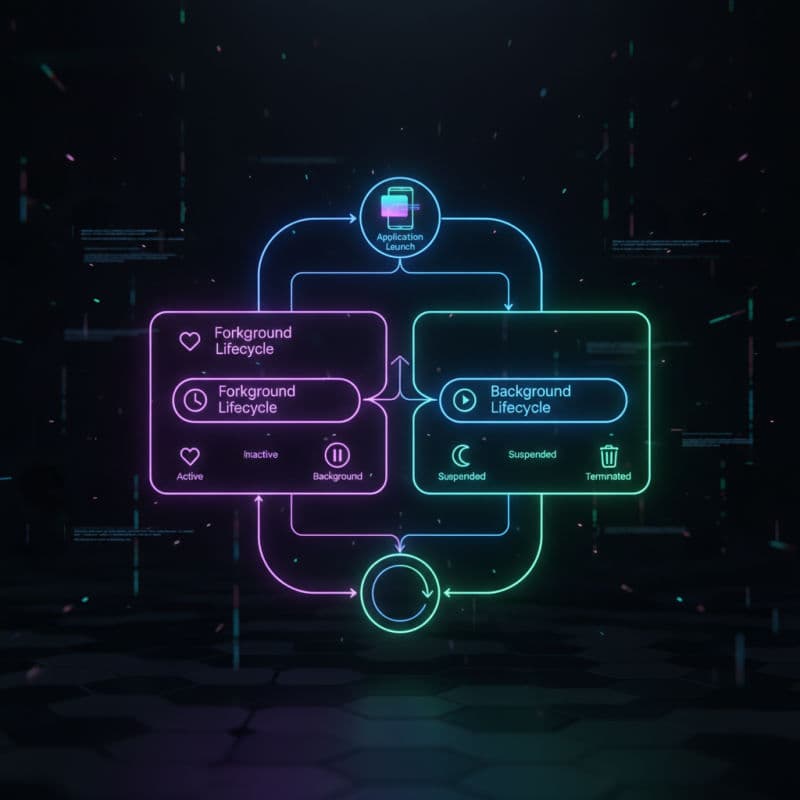
Introduction to the UIKit App Lifecycle
Every iOS application, whether it's a simple utility or a complex game, follows a predictable lifecycle managed by UIKit and the operating system. This lifecycle dictates how your app starts, runs, pauses, resumes, and terminates. A deep understanding of these states and the methods associated with them is crucial for building stable, efficient, and user-friendly applications. Without this knowledge, you might encounter issues like data loss, performance degradation, or even app crashes.
Historically, AppDelegate was the central hub for managing the entire app's lifecycle. With the introduction of iOS 13 and SceneDelegate, Apple modularized this responsibility, especially for apps supporting multiple windows or scenes. This separation of concerns allows for more flexible and scalable application architectures, particularly on devices like the iPad where users can run multiple instances of the same app or different parts of an app concurrently. For apps targeting iOS 13 and later, you'll primarily interact with both AppDelegate for process-level events and SceneDelegate for UI-related lifecycle events.
This article will guide you through the various app states, explain the roles of AppDelegate and SceneDelegate, and provide practical examples of how to implement lifecycle methods to handle common scenarios like saving user data, responding to memory warnings, and managing background tasks.
Key App States and Their Meanings
Your application can exist in several distinct states, each triggering specific behaviors and API calls. Understanding these states is paramount to managing your app's resources and user experience effectively.
-
Not Running: The app has not been launched or was terminated by the system.
-
Inactive: The app is running in the foreground but is not receiving events. This often happens momentarily when a phone call or SMS message is received, or when the user pulls down the Notification Center while your app is active. The UI is visible but user interaction is paused.
-
Active: The app is running in the foreground and is receiving events. This is the normal operating mode for an app.
-
Background: The app is in the background and executing code. Most apps briefly enter this state on their way to being suspended, but some apps can request extra execution time or support specific background execution modes (like playing audio, tracking location, or performing background fetches). When your app enters the background, its UI is no longer visible.
-
Suspended: The app is in the background and has been explicitly suspended by the system, or implicitly suspended because it finished executing background tasks. A suspended app remains in memory but executes no code. The system may purge suspended apps from memory without warning at any time to free up resources.
Transitions between these states are managed by the operating system, which notifies your app through delegate methods. You, as the developer, implement these methods to react appropriately.
The Role of AppDelegate: Process-Level Events
The AppDelegate class is the entry point for your application and acts as the heart of your app's interaction with the operating system at a process level. It conforms to the UIApplicationDelegate protocol and is responsible for critical events that affect the entire application instance, regardless of how many scenes (windows) it has. For apps supporting iOS 13 and later, AppDelegate primarily handles system-level events such as app launch, termination, memory warnings, push notification registration, and configuration of new UISceneSession instances.
Here's a breakdown of the most critical AppDelegate methods:
-
application(_:didFinishLaunchingWithOptions:): This is the first method called when your app launches. It's your primary opportunity to perform essential setup, such as configuring third-party SDKs, setting up your initial UI (for pre-iOS 13 apps orUIScenesetup for later versions), and preparing your data model. It returns aBoolindicating whether the app successfully finished launching. For apps withSceneDelegate, this method is where you'd set up defaultUISceneConfigurations. -
application(_:configurationForConnecting:options:): (iOS 13+) This method is called to request a configuration object for a new scene. You use it to specify theSceneDelegateclass to be used for this new scene. -
application(_:didDiscardSceneSessions:): (iOS 13+) This method is called when the user discards one or more scenes. You can use it to clean up any resources associated with those discarded scenes that might not be automatically released. -
applicationWillResignActive(_:): Called when the app is about to move from active to inactive. Use this to pause ongoing tasks, disable timers, and generally prepare for a temporary interruption. This method is called beforesceneWillResignActivefor all scenes. -
: Called when the app transitions from inactive to the background. You should save user data, release shared resources, and prepare for potentially being suspended. Requesting extra background task execution time can be done here.
Let's look at an example implementation for saving user defaults upon entering the background:
The Rise of SceneDelegate: UI-Specific Lifecycle (iOS 13+)
Starting with iOS 13, Apple introduced SceneDelegate to manage the lifecycle of a UIScene (window), which represents an instance of your app's UI. This is particularly important for iPad apps, which can support multiple windows, and for features like Split View and Multitasking on iPhone. Each UISceneSession (often corresponding to a single window) has its own SceneDelegate instance, allowing for independent UI state management.
Key SceneDelegate methods include:
-
scene(_:willConnectTo:options:): This is the first method called when a new scene is created and connected. It's where you configure the scene'swindowproperty, set itsrootViewController, and establish the initial UI. -
sceneDidDisconnect(_:): Called when a scene is disconnected. This happens when the user closes a window or the system terminates a scene that was running in the background. You should release resources specific to this scene here, as it might not reconnect. -
sceneWillResignActive(_:): Called when the scene is about to move from an active to an inactive state. Similar toapplicationWillResignActive, but specific to a single scene. -
sceneDidEnterBackground(_:): Called when the scene transitions to the background. Save scene-specific state and release resources here. -
sceneWillEnterForeground(_:): Called when the scene transitions from the background to the foreground. Restore scene-specific state. -
sceneDidBecomeActive(_:): Called when the scene becomes active. This is where you would restart UI-related tasks or animations specific to this scene. This is often the best place to refresh the visual state of your UI.
For apps supporting iOS 13 and later, the typical flow for launching a scene is: AppDelegate.application(_:didFinishLaunchingWithOptions:) -> AppDelegate.application(_:configurationForConnecting:options:) -> SceneDelegate.scene(_:willConnectTo:options:).
Here's an example of a SceneDelegate handling window setup and state management:
Handling Background Execution and Resource Management
Efficiently managing your app's resources, especially when it moves into the background, is critical for a good user experience and system stability. iOS strictly regulates background execution to conserve battery life and memory.
Background Tasks: If your app needs a short amount of extra time to finish a task (e.g., uploading a file, saving data) after moving to the background, you can request a limited extension using UIApplication.beginBackgroundTask(withName:expirationHandler:). This grants your app a few extra seconds (typically around 30 seconds) to complete its work. It's crucial to call endBackgroundTask(_:) once your task is complete or if it expires, to avoid your app being terminated by the system.
Long-Running Background Modes: For tasks that require prolonged background execution (e.g., playing audio, tracking location, VoIP, rich push notifications, background fetch, background processing), you must explicitly declare these capabilities in your app's Info.plist file (under 'UIBackgroundModes'). Misusing these modes can lead to app rejection or excessive battery drain.
Memory Management: When your app receives a applicationDidReceiveMemoryWarning(_:) call (via AppDelegate), it's a strong signal from the operating system that memory is scarce. You should respond by releasing any non-critical resources, such as cached images, large data structures, or off-screen view controller views, that can be easily recreated. Failure to do so can lead to your app being terminated by the system without warning, especially if it's in the background.
Let's expand on the UISceneDelegate example to show how a scene might manage resources when actively becoming inactive, and how to use NotificationCenter to observe memory warnings globally that might affect specific scenes or view controllers.
Best Practices for Robust Lifecycle Management
Building a robust iOS application requires more than just knowing when the lifecycle methods are called; it requires adopting best practices to ensure stability, performance, and a smooth user experience.
-
Save Data Frequently and Incrementally: Don't wait for
applicationWillTerminateto save critical user data. Instead, save data incrementally as changes occur, especially inapplicationDidEnterBackground(_:)(App-level) orsceneDidEnterBackground(_:)(Scene-level). Core Data contexts should be saved,UserDefaultssynchronized, and files written as soon as possible when the app leaves the foreground or becomes backgrounded. Remember, termination can happen abruptly. -
Release Resources: When your app goes into the background or receives a memory warning, release resources that are not immediately needed. This includes large image caches, network connections that can be re-established, and view hierarchies for off-screen view controllers. The
viewDidUnload(deprecated in iOS 6) pattern has evolved, and now you often manage this yourself by setting properties tonilor clearing collections. -
Handle Interruptions Gracefully: When
applicationWillResignActive(_:)orsceneWillResignActive(_:)is called, pause tasks that require user interaction, disable auto-locking, and prepare for a temporary interruption. This is critical for games, media players, and apps with sensitive data entry. -
Use Background Modes Judiciously: Only enable background execution modes (
UIBackgroundModesin ) when absolutely necessary and for the specific tasks they are designed for. Misuse can lead to excessive battery consumption and app rejection by Apple.
By following these best practices, you can build iOS applications that are robust, resilient, and performant, providing an excellent experience for your users.
Common Interview Questions
What is the primary difference between AppDelegate and SceneDelegate?
Historically, `AppDelegate` managed all app lifecycle events. With iOS 13 and later, `AppDelegate` handles process-level events (app launch, termination, memory warnings), while `SceneDelegate` manages UI-specific lifecycle events for individual windows or 'scenes' (e.g., when a specific window becomes active, goes to background, or is disconnected). This allows for multiple windows for a single app process on devices like iPad.
How do I ensure my app saves user data reliably before being terminated by the system?
You should not solely rely on `applicationWillTerminate(_:)` for critical data saving, as the system might terminate your app without calling it. Instead, save data incrementally as changes occur and most importantly, persist crucial data when your app enters `applicationDidEnterBackground(_:)` or `sceneDidEnterBackground(_:)`. You can also use `beginBackgroundTask(withName:expirationHandler:)` to briefly extend execution time in the background for saving.
What happens if I don't call `endBackgroundTask(_:)` after requesting extra background execution time?
If you call `beginBackgroundTask(withName:expirationHandler:)` but fail to call `endBackgroundTask(_:)` when your background task is complete or has expired, your application will be terminated by the system. This is considered a critical error and is often due to the app exceeding the allotted background execution time without properly notifying the system.
Why would my app be terminated by the system without `applicationWillTerminate(_:)` being called?
The system can terminate your app without calling `applicationWillTerminate(_:)` primarily due to excessive memory usage. If your app consumes too much memory, especially while in the background or being suspended, the system will aggressively terminate it to free up resources for other running apps or the system itself. This is why properly handling `applicationDidReceiveMemoryWarning(_:)` and releasing non-critical resources is vital.