Understanding and Modernizing AppDelegate in UIKit Apps
The AppDelegate is a cornerstone of UIKit applications, managing critical lifecycle events and foundational setup. While its role has evolved with the introduction of SceneDelegate and SwiftUI, understanding its core responsibilities remains vital for robust iOS development. This article delves into the AppDelegate's functionalities and guides you through modern best practices.
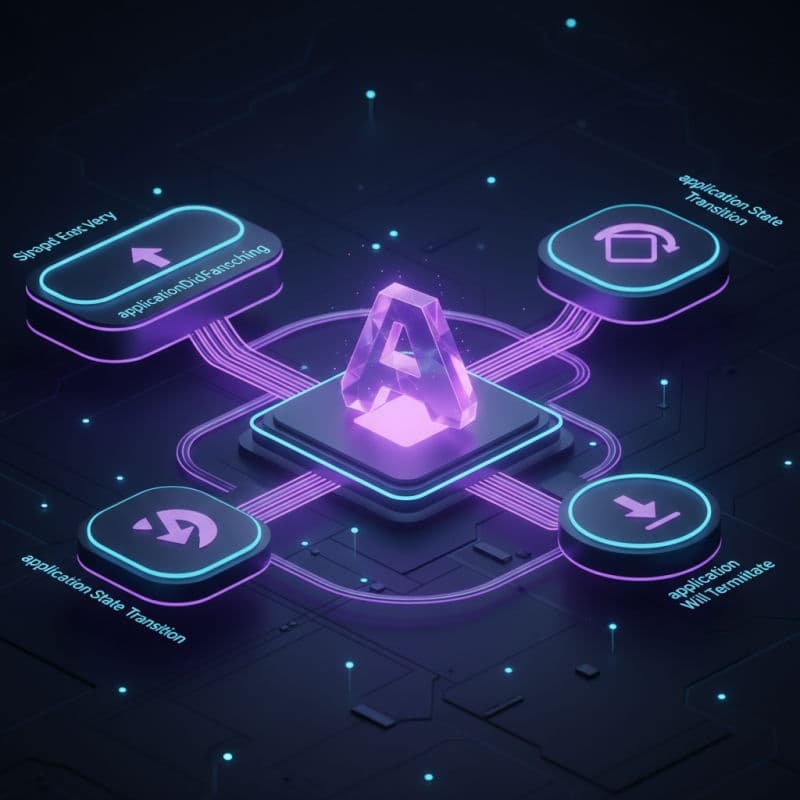
Introduction to AppDelegate: The Foundation of Your UIKit App
Every traditional UIKit application has an AppDelegate class, which serves as the primary entry point for managing the application's global state and responding to system-level events. Think of it as the application's 'delegate' to the operating system, receiving important notifications about its lifecycle, memory warnings, and push notifications.
Historically, AppDelegate was a monolithic class handling almost all application-wide configurations and events. However, with iOS 13 and the introduction of SceneDelegate, its responsibilities have become more focused, particularly for apps supporting multiple windows or scenes. Even for single-scene apps, understanding AppDelegate's core functions is crucial.
Some of the key responsibilities traditionally (and still currently) handled by AppDelegate include:
- Application Launch: The first methods called when your app starts.
- Memory Warnings: Responding to low memory conditions.
- Push Notifications (Legacy): Registering for and handling remote notifications (though modern approaches often involve dedicated frameworks).
- External Service Configuration: Initializing third-party SDKs (analytics, crash reporting).
- State Restoration: Handling application-wide state preservation during termination and restoration.
- Background Fetch & Task Completion: Managing background operations.
This section will lay the groundwork for understanding AppDelegate's essential methods before we explore how its role has shifted and how to embrace modern delegation patterns.
Core AppDelegate Methods and the App Lifecycle
The AppDelegate conforms to the UIApplicationDelegate protocol, which defines a plethora of optional methods allowing you to hook into various stages of your app's lifecycle. Let's explore some of the most critical ones.
Application Launch
The most important method for application launch is application(_:didFinishLaunchingWithOptions:). This is where you typically perform initial setup tasks that need to happen before your app's UI is displayed. This includes setting up your root view controller (in older apps without SceneDelegate), configuring external SDKs, or database initialization.
application(_:didFinishLaunchingWithOptions:): Called after the app has launched and before its UI is presented to the user. This is your primary setup method. (Available on iOS 2.0+)applicationDidBecomeActive(_:): Called when the app becomes active, typically after launch or when returning from the background. This is a good place to resume tasks or refresh UI. (Available on iOS 2.0+)applicationWillResignActive(_:): Called when the app is about to move from the active to inactive state (e.g., when a phone call comes in or the user presses the home button). You should pause ongoing tasks. (Available on iOS 2.0+)applicationDidEnterBackground(_:): Called when the app is in the background and potentially suspended. Save essential data and free up resources. (Available on iOS 4.0+)applicationWillEnterForeground(_:): Called when the app is moving from the background to the foreground, but before it becomes active. You can prepare for reactivation here. (Available on iOS 4.0+)applicationWillTerminate(_:): Called when the app is about to terminate. This is not guaranteed to be called reliably (e.g., if the user force-quits). Save any critical data here if necessary, but don't rely heavily on it. (Available on iOS 2.0+; less relevant since iOS 4.0's backgrounding)
Handling Universal Links and URL Schemes
If your app needs to respond to custom URL schemes or Universal Links, AppDelegate provides methods for this. For Universal Links, you'll use application(_:continueUserActivity:restorationHandler:).
application(_:continueUserActivity:restorationHandler:): HandlesNSUserActivityobjects, which are used for Handoff, Siri Shortcuts, and crucially, Universal Links. (Available on iOS 8.0+)application(_:open:options:): Handles incoming URLs from custom URL schemes. (Available on iOS 9.0+, superseding olderapplication:handleOpenURL:)
Push Notifications
For remote push notifications, AppDelegate traditionally plays a role in registering for notifications and handling the device token. With iOS 10, the UserNotifications framework (via UNUserNotificationCenterDelegate) became the primary way to handle notifications in the foreground and perform actions.
While AppDelegate methods exist, for modern push notification handling (especially for custom UI or actions in the foreground), you would typically implement the UNUserNotificationCenterDelegate protocol, often in the AppDelegate itself or a dedicated helper class.
The Rise of SceneDelegate: Modern App Architecture
Starting with iOS 13, Apple introduced SceneDelegate to fundamentally change how application state and UI are managed. This was a direct response to the need for multiple windows (scenes) on iPads (and later, Macs with Mac Catalyst) and to better encapsulate UI lifecycle management.
What is a Scene?
A 'scene' represents a single instance of your app's UI. Before iOS 13, an app typically had one UIWindow and one main UI instance. With SceneDelegate, an app can have multiple scenes, each with its own UIWindow, view hierarchy, and lifecycle.
AppDelegate vs. SceneDelegate
Their responsibilities are now clearly delineated:
-
AppDelegate: Manages the application process's lifecycle. This includes events relevant to the entire application, regardless of how many scenes are active, such as:application(_:didFinishLaunchingWithOptions:)(app-wide launch setup)applicationWillTerminate(_:)(app-wide termination)- Responding to memory warnings (
applicationDidReceiveMemoryWarning(_:)) - Handling push notification registration (
didRegisterForRemoteNotificationsWithDeviceToken) and legacy background notifications. - App-wide configuration (Crashlytics, analytics, database setup).
-
SceneDelegate: Manages the lifecycle of a specific scene or UI instance. Each scene gets its ownSceneDelegateinstance. Its responsibilities include:- Window Management: Setting up the
UIWindowfor the scene and assigning itsrootViewController. This is the most visible change. - Scene State Transitions: Responding to a scene becoming active, inactive, entering the background, or disconnecting.
- : Saving and restoring scene-specific state.
- Window Management: Setting up the
For apps supporting iOS 13 and later, the initial window setup code moves from AppDelegate to SceneDelegate.
For apps targeting iOS 13+, if you are deploying to a device or simulator that supports multiple windows (e.g., an iPad), you must have a SceneDelegate. Even for iPhone-only apps running on iOS 13+, you'll still use SceneDelegate for your single UI window setup. If you need to revert to the pre-iOS 13 behavior for specialized reasons (e.g., watchOS applications or maintaining a single window on iPad), you can remove the Application Scene Manifest entry from your Info.plist.
Modernizing AppDelegate: Best Practices and Refactoring
With the architectural shift brought by SceneDelegate, you should strive to keep your AppDelegate lean and focused on app-wide concerns, offloading scene-specific responsibilities to SceneDelegate or dedicated helper classes.
1. Offload Scene-Specific Logic
Move all UI-related setup, UIWindow creation, rootViewController assignment, and handling of Universal Links/URL schemes that pertain to a specific UI instance to SceneDelegate.
2. Isolate Responsibilities with Dedicated Classes
Instead of putting all third-party SDK initializations directly into AppDelegate, create dedicated manager classes or configurators. This adheres to the Single Responsibility Principle and makes your AppDelegate cleaner and easier to test.
For example, instead of initializing Fabric, Firebase, and analytics directly in didFinishLaunchingWithOptions, you could have:
This approach makes your AppDelegate's didFinishLaunchingWithOptions readable as a high-level overview of what services your app uses, without getting bogged down in implementation details.
3. Handle Push Notifications Separately (iOS 10+)
For modern push notification handling, leverage UNUserNotificationCenterDelegate. You can set your AppDelegate as the delegate, or even better, create a dedicated NotificationService or PushNotificationHandler class.
Remember to call registerForPushNotifications() from application(_:didFinishLaunchingWithOptions:).
4. SwiftUI Lifecycle in UIKit Apps
If you're integrating SwiftUI views into a UIKit app, AppDelegate and SceneDelegate still play their roles. When your app's entry point is an AppDelegate (i.e., you haven't fully switched to @main for SwiftUI App lifecycle),
SceneDelegate will typically host a UIHostingController as its rootViewController.
Let's say you have a ContentView in SwiftUI:
Your SceneDelegate would then look like this:
This setup allows a UIKit app to use AppDelegate for its global lifecycle and SceneDelegate to bootstrap a SwiftUI view hierarchy within its window. This is the common pattern for hybrid applications.
By following these practices, you can ensure your AppDelegate remains maintainable and aligned with modern iOS development paradigms.
Common Interview Questions
What is the primary role of AppDelegate in an iOS application?
The primary role of AppDelegate is to manage the application's overall lifecycle, responding to system-level events such as app launch, termination, memory warnings, and transitions between active, inactive, and background states. It also handles app-wide configurations like third-party SDK initializations.
When was SceneDelegate introduced, and why?
SceneDelegate was introduced in iOS 13 to manage individual instances of an app's UI, known as 'scenes.' This became necessary to support features like multiple windows on iPad (and later Mac Catalyst), allowing each scene to have its own lifecycle and UI state independent of other scenes or the overall application process.
Which methods are typically handled by AppDelegate versus SceneDelegate in modern iOS apps?
In modern iOS apps (iOS 13+), `AppDelegate` handles app-wide events like `application(_:didFinishLaunchingWithOptions:)` for global setup and `applicationWillTerminate(_:)`. `SceneDelegate` handles scene-specific events such as setting up the `UIWindow` and `rootViewController` (`scene(_:willConnectTo:options:)`), scene state transitions (`sceneDidBecomeActive(_:)`, `sceneDidEnterBackground(_:)`), and scene-specific URL handling.
Can I use SwiftUI in a UIKit app that still uses `AppDelegate` and `SceneDelegate`?
Yes, absolutely. This is a common and recommended way to integrate SwiftUI into existing UIKit apps. Your `SceneDelegate` will typically create a `UIHostingController` and assign your top-level SwiftUI `View` as its `rootView`, effectively embedding the SwiftUI hierarchy within your UIKit window system.
How do I handle Universal Links or URL Schemes in iOS 13+ apps?
For iOS 13 and later, scene-specific URL handling (Universal Links via `NSUserActivity` and custom URL schemes) should primarily be handled in `SceneDelegate` using methods like `scene(_:continue:restorationHandler:)` for Universal Links and `scene(_:openURLContexts:)` for custom URL schemes. This ensures the URL is processed in the context of the correct scene.