Mastering the iOS App Lifecycle: A Guide for Swift Developers
Understanding the iOS App Lifecycle is fundamental for building responsive and efficient applications. This guide will walk you through essential app states, UIKit and SwiftUI lifecycle management, and best practices for handling state transitions to create a seamless user experience.
Introduction to the iOS App Lifecycle
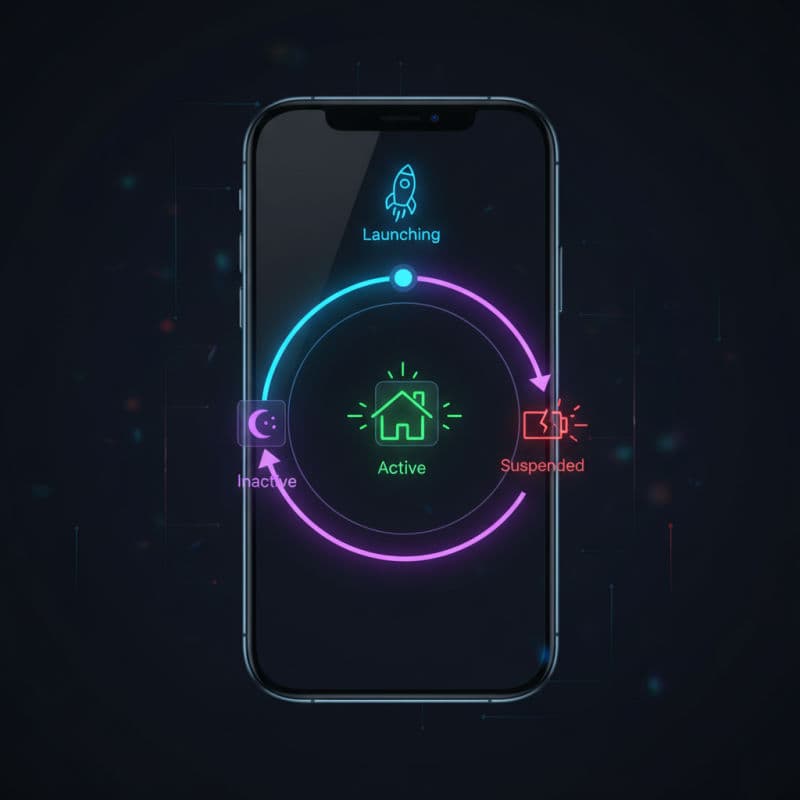
Every iOS application goes through a predefined set of states, collectively known as the App Lifecycle. Understanding these transitions is crucial for managing resources, saving user data, and ensuring a smooth user experience. When your app launches, moves to the background, returns to the foreground, or terminates, the system notifies it of these changes. Your app can then respond by implementing specific methods or observing certain events.
Historically, AppDelegate was the central point for managing the app lifecycle. With the introduction of iPadOS 13 and iOS 13, and especially with SwiftUI, a new concept called 'Scenes' emerged, handled by SceneDelegate. This shift allows for multiple instances of an app's UI to run concurrently, each with its own lifecycle. Even if you're building a SwiftUI app, particularly targeting older iOS versions or requiring deep customization, understanding both AppDelegate and SceneDelegate (or the new @main App struct for modern SwiftUI) is beneficial.
This article will cover the core app states, how to respond to state changes in both UIKit and SwiftUI, and provide best practices for managing your app's lifecycle effectively. By mastering these concepts, you'll be able to build more stable, efficient, and user-friendly iOS applications.
Understanding Core iOS App States
Before diving into implementation, let's define the fundamental states an iOS app can be in:
- Not running: The app has not been launched or was terminated by the system or the user.
- Inactive: The app is running in the foreground but is not receiving events. This often happens briefly as the app transitions between states, such as when a phone call comes in or the control center is pulled down.
- Active: The app is running in the foreground, receiving events, and fully operational. This is the normal operating state for a foreground app.
- Background: The app is no longer in the foreground but is still executing code. It might be performing a short task, refreshing content, or waiting for a specific event (e.g., location updates). Apps in this state can still execute code for a limited time.
- Suspended: The app is in the background and its code is no longer being executed. The system moves apps to this state to free up memory. A suspended app remains in memory but is effectively 'frozen'. The system can terminate it at any time to reclaim resources without notifying the app.
Understanding these states is crucial for knowing when and where to save data, release resources, or prepare for potential termination.
Managing Lifecycle in UIKit with AppDelegate and SceneDelegate
In UIKit, the AppDelegate and SceneDelegate are your primary interfaces for managing the application's lifecycle. AppDelegate handles application-wide events, while SceneDelegate manages the lifecycle of individual scenes (UI windows).
AppDelegate Methods
For apps targeting iOS 13 and later with SceneDelegate, AppDelegate still manages key application-level events:
application(_:didFinishLaunchingWithOptions:): Called when the app has finished launching and is ready to run. This is your primary entry point for initial setup, registering for push notifications, and configuring services. (iOS 2.0+)applicationWillTerminate(_:): Called when the app is about to be terminated. Use this for final cleanup and saving essential user data. Note that this method is not called if the app is suspended and then terminated by the system for memory reclamation. (iOS 2.0+)applicationDidEnterBackground(_:): Called when the user leaves your app and it enters the background. You should save data, release shared resources, and prepare for potential suspension. (iOS 4.0+)applicationWillEnterForeground(_:): Called when the app is about to move from the background to the foreground. This is where you might restore UI state, refresh data, or re-establish network connections. (iOS 4.0+)
SceneDelegate Methods (iOS 13+)
For apps with UISceneDelegate (which is standard for iOS 13+), scene-specific lifecycle events are handled here. Each scene represents an instance of your app's UI.
scene(_:willConnectTo:options:): Called when a new scene is created and connected. This is where you set up the scene's UI, typically assigning aUIWindowand arootViewController.sceneDidDisconnect(_:): Called when a scene is disconnected. This might happen when the user closes a scene or the system decides to release resources. The scene might be reconnected later.sceneDidBecomeActive(_:): Called when the scene has become active, moving from an inactive state. The app's UI is now ready to interact with the user.sceneWillResignActive(_:): Called when the scene is about to become inactive. This occurs when the user switches to another app, opens Control Center, or receives a phone call. Use this to pause ongoing tasks or save minor UI state.sceneWillEnterForeground(_:): Called when a scene moves from the background to the foreground. Similar toapplicationWillEnterForeground, but specific to a scene.sceneDidEnterBackground(_:): Called when a scene moves from the foreground to the background. Similar toapplicationDidEnterBackground, but specific to a scene.
Here’s an example using SceneDelegate:
Lifecycle Management in SwiftUI
SwiftUI, especially with the introduction of the new App protocol in iOS 14, simplifies lifecycle management significantly. Instead of AppDelegate and SceneDelegate, you define your application's structure using App and Scene types.
The @main App Structure (iOS 14+)
For modern SwiftUI apps, you define your app's entry point using the @main attribute on a struct that conforms to the App protocol. Inside this App struct, you use one or more Scenes to define the user interfaces.
Observing @Environment(\.scenePhase)
The @Environment(\.scenePhase) property wrapper provides access to the current phase of the scene. This is the primary way to observe lifecycle changes in SwiftUI. You can use the .onChange(of:perform:) modifier on your Scene (or even a specific view if you need more granular control) to react to these changes:
.active: The scene is in the foreground and receiving user input..inactive: The scene is in the foreground but not receiving input (e.g., system alert is showing)..background: The scene is no longer in the foreground.
This approach is much cleaner than traditional delegate methods, allowing you to react to lifecycle events directly within your SwiftUI views or application struct, making your code more declarative and easier to reason about.
Backward Compatibility Considerations
For apps targeting iOS versions prior to 14, or if you need to access specific AppDelegate functionalities (like application(_:didFinishLaunchingWithOptions:) for SDK initialization) alongside SwiftUI, you can still use AppDelegate by conforming to UIApplicationDelegate and providing a custom App entry point that uses AppDelegateAdapter or similar mechanisms. However, for most new SwiftUI projects targeting iOS 14+, the @main App structure is preferred.
Best Practices for App Lifecycle Management
Effective app lifecycle management is about more than just implementing the right delegate methods or observers; it's about designing your app to gracefully handle various states. Here are some best practices:
- Save User Data Promptly: Don't wait until
applicationWillTerminate(which might not even be called). Save user-generated data whenever there's a significant change, and especially when the app enters the background (sceneDidEnterBackgroundor.backgroundscene phase). Use Core Data, Realm, orUserDefaultsas appropriate. - Release Expensive Resources: When your app goes into the background, release memory-intensive resources like large images, video buffers, or database caches that are not actively needed for background tasks. This helps the system keep your app in memory longer rather than terminating it.
- Pause and Resume Operations: If your app performs animations, plays media, or has ongoing network requests, pause these activities when the app becomes inactive or enters the background. Resume them when the app becomes active or enters the foreground again. This conserves battery and system resources.
- Handle Background Execution Gracefully: If your app needs to perform tasks in the background (e.g., fetching new data, processing location updates), ensure you request the appropriate background modes in your
Info.plistand useUIApplication.shared.beginBackgroundTask(withName:expirationHandler:)to get extra execution time. Be mindful of system limits and battery consumption. - Restore State: When your app returns to the foreground, restore its previous state. This includes UI state (scrolling position, selected tabs), data that might have changed while in the background, and resuming any paused operations.
- Test Thoroughly: Test your app's behavior across all lifecycle transitions. Simulate backgrounding, foregrounding, termination, and suspension. Use the Xcode debugger to observe changes and ensure your app handles them correctly.
By following these practices, you can build resilient applications that provide a smooth and predictable experience, regardless of how the user interacts with them or how the system manages their state.
Common Interview Questions
What's the difference between 'Inactive' and 'Background' app states?
An 'Inactive' app is in the foreground but temporarily not receiving events (e.g., during a phone call, or system alert). It's still visible to the user. A 'Background' app is no longer in the foreground; it's behind other apps and might still be executing code for a short period before potentially becoming 'Suspended'. The user cannot see or directly interact with a background app.
How can I run code when my SwiftUI app launches, similar to `didFinishLaunchingWithOptions` in UIKit?
In SwiftUI (iOS 14+), you can use the `init()` method of your `App` struct or attach an `.onAppear` modifier to your root view. For tasks that truly need to run only once at app launch and before any UI is presented, the `init()` of your `App` struct is the most equivalent place. For tasks that are more related to the UI becoming visible, `.onAppear` on your root `WindowGroup`'s content view is suitable. Additionally, for complex setup that might still require `UIApplicationDelegate` methods, you can integrate an `AppDelegate` into your SwiftUI App.
My app gets terminated by the system without `applicationWillTerminate` being called. Why?
This is expected behavior, especially for apps that transition from 'Active' to 'Background' and then to 'Suspended'. When your app is suspended, it's 'frozen' in memory. If the system needs memory for other critical processes, it will simply reclaim your app's memory without waking it up to call `applicationWillTerminate`. This highlights the importance of saving critical user data and releasing resources when your app enters the background (`applicationDidEnterBackground` or `.background` scene phase), as you can't rely on `applicationWillTerminate` for final cleanup.