Mastering the UIApplication Lifecycle in Swift: A Comprehensive Guide
The UIApplication lifecycle is fundamental to building robust and performant iOS applications. This guide demystifies the various app states and the critical methods you can leverage to manage your app's behaviour, ensuring a smooth user experience.
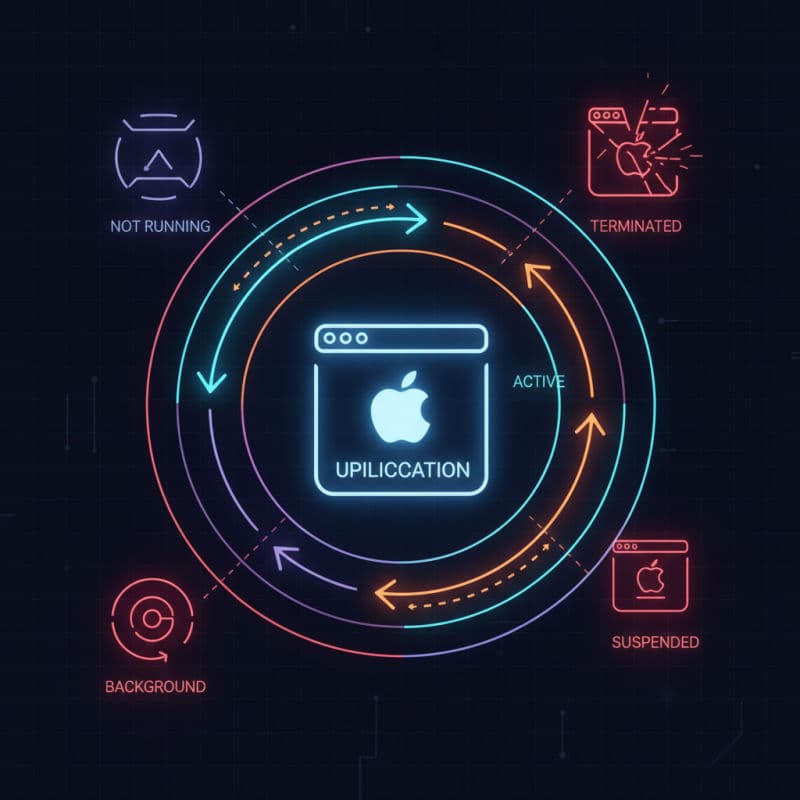
Introduction to the iOS Application Lifecycle
Every iOS application, regardless of its complexity, operates within a well-defined lifecycle managed by the system. Understanding this UIApplication lifecycle is crucial for developing stable, efficient, and responsive apps. It dictates how your app behaves when it launches, moves to the foreground or background, and eventually terminates.
Before iOS 13, the AppDelegate was the sole point of contact for managing application-level events. With the introduction of iPadOS and Mac Catalyst, and the need for apps to support multiple windows (or 'scenes'), Apple introduced UISceneDelegate to manage the lifecycle of individual scenes. While AppDelegate still handles process-level events, SceneDelegate now manages UI-specific lifecycle events for each scene your app presents.
In this comprehensive guide, you will explore the various states an iOS app can transition through and learn how to effectively use the AppDelegate and SceneDelegate methods to respond to these changes.
Understanding App States and Transitions
An iOS application typically transitions through several distinct states during its lifetime. Knowing these states and what they signify is key to handling user interactions and system events correctly.
App States:
- Not Running: The app has not been launched or was terminated by the system.
- Inactive: The app is running in the foreground but is not receiving events. This often happens momentarily when a user taps on another app, or an incoming call or message prompt is displayed. The UI is still visible but unresponsive to touches.
- Active: The app is running in the foreground and is receiving events. This is the normal operating mode for a foreground app.
- Background: The app is in the background and is executing code. Most apps briefly enter this state when going from active to suspended. A background app might continue to run for a short period to finish tasks, download content, or perform location updates.
- Suspended: The app is in the background but is not executing any code. The system moves apps to this state to free up memory. Suspended apps remain in memory but consume no CPU cycles. The system can terminate suspended apps at any time to reclaim resources, without notifying the app.
State Transitions:
- Not Running → Inactive → Active: This is the typical launch sequence when a user taps your app icon.
- Active → Inactive: Occurs when an interruption (like a phone call) temporarily takes control, or when the user is about to switch apps.
- Inactive → Active: The app returns to full foreground operation after an interruption.
- Active → Inactive → Background: When the user presses the Home button, the app first becomes inactive, then transitions to the background.
- Background → Suspended: If your app is not performing background tasks, or if a background task completes, the system will suspend it.
- Suspended → Not Running: The system terminates suspended apps when memory is needed, without further notification to the app.
- Background → Inactive → Active: When the user brings your app back to the foreground from the background, it first becomes inactive, then active.
The AppDelegate: Process-Level Events
The AppDelegate is the entry point for your application and handles crucial process-level lifecycle events. You'll find it in AppDelegate.swift in your Xcode project. For apps developed with iOS 13 and later using UISceneDelegate, the AppDelegate primarily deals with:
- Application launch: Initial setup and configuration.
- Termination: Final cleanup.
- Memory warnings: Responding to low-memory conditions.
- Push notifications registration.
- Handoff activities.
Here are some of the most important AppDelegate methods:
-
application(_:didFinishLaunchingWithOptions:): This method is called once when your app finishes launching. It's your earliest opportunity to perform essential app configuration, such as setting up your root view controller, configuring third-party SDKs, or database initialization. It returns aBoolindicating whether the app launched successfully. -
application(_:configurationForConnectingSceneSession:options:)(iOS 13+): This method is crucial for apps supportingUISceneDelegate. It's called when the system needs a new configuration to create a UI scene. You use it to specify theUISceneConfigurationfor a new scene, linking it to yourSceneDelegate. -
application(_:didDiscardSceneSessions:)(iOS 13+): Called when the user discards one or moreUISceneSessions. This is your chance to clean up any resources associated with those discarded scenes. -
applicationWillTerminate(_:): Called when the app is about to terminate. This method is not guaranteed to be called if the app is suspended and then terminated by the system to reclaim memory. You should save user data incrementally throughout the app's lifetime rather than relying solely on this method for saving. -
applicationDidReceiveMemoryWarning(_:): The system calls this method when your app receives a memory warning. You should release caches, large data structures, or other objects that can be recreated later, to prevent the system from terminating your app.
Example: Basic AppDelegate Setup
This example shows a typical AppDelegate for an app using SceneDelegate.
The SceneDelegate: UI-Specific Lifecycle Events (iOS 13+)
For iOS 13 and later, UISceneDelegate takes over many UI-related lifecycle responsibilities that were previously handled by AppDelegate. Each scene (window) in your app has its own SceneDelegate instance, allowing you to manage multiple independent instances of your app's UI.
Common responsibilities of SceneDelegate include:
- Window setup and management: Setting up the
UIWindowand root view controller for a scene. - Responding to scene activations/deactivations: Handling foreground and background transitions for a specific scene.
- State restoration: Saving and restoring the UI state of a scene.
Here are the most significant SceneDelegate methods:
-
scene(_:willConnectTo:options:): This is the first method called when a scene is added to the application. It's where you typically create yourUIWindow, assign it to the scene, and set your initialrootViewController. This is equivalent to setting up your main window in pre-iOS 13AppDelegates. -
sceneWillEnterForeground(_:): Called when the scene is about to move from the background to the foreground. This is a good place to restart tasks that were paused when the scene was in the background, such as refreshing UI or resuming network operations. -
sceneDidBecomeActive(_:): Called when the scene has just transitioned to an active state. Your UI is now visible and ready to receive user input. This is optimal for starting animations, timers, or other interactive elements. -
sceneWillResignActive(_:): Called when the scene is about to move from an active to an inactive state. This happens when an interruption (like a phone call) occurs or when the user is about to switch to another app. You should pause ongoing tasks, stop animations, and save any temporary UI-related state. -
sceneDidEnterBackground(_:): Called when the scene has moved to the background. You have a limited amount of time to perform final cleanups, save important user data, release shared system resources, and prepare for potential suspension. If you need more time for long-running tasks, you must explicitly request it usingbeginBackgroundTask(withName:expirationHandler:).
Example: Basic SceneDelegate Setup
This example demonstrates how to set up the window and handle scene state changes.
Practical Tips for Lifecycle Management
Effective management of the UIApplication lifecycle can significantly improve your app's user experience and resource consumption. Here are some best practices:
-
Save Data Incrementally: Do not rely solely on
applicationWillTerminate(_:)orsceneDidEnterBackground(_:)for saving critical user data. Save data as changes occur, or frequently, to prevent data loss if your app is unexpectedly terminated. -
Release Resources: In
sceneWillResignActive(_:)orsceneDidEnterBackground(_:), release any non-critical resources (e.g., large images, network connections, memory caches) that can be easily recreated. This reduces your app's memory footprint and allows the system to keep it in memory longer. -
Pause and Resume Operations: In
sceneWillResignActive(_:), pause animations, stop timers, silence audio, and pause active network requests. Resume these operations insceneDidBecomeActive(_:)orsceneWillEnterForeground(_:). -
Handle Memory Warnings: Implement
applicationDidReceiveMemoryWarning(_:)to aggressively deallocate memory. This is your chance to prevent your app from being terminated by the system. -
Background Execution Time: If your app absolutely needs to complete a short task in the background (e.g., uploading a photo, saving complex data), request extra execution time using
beginBackgroundTask(withName:expirationHandler:). Be mindful that this time is limited (typically around 30 seconds for non-location, non-audio, non-VoIP apps) and not guaranteed.
By following these practices, you can ensure your app responds gracefully to system events and provides a seamless experience for your users.
Conclusion
The UIApplication lifecycle, along with its AppDelegate and SceneDelegate components, is a powerful framework that dictates how your iOS app interacts with the operating system and its users. By deeply understanding app states and the purpose of each delegate method, you can write more robust, efficient, and user-friendly applications.
Always remember to prioritize user experience by saving data diligently, releasing unnecessary resources, and gracefully handling interruptions. Mastering the UIApplication lifecycle isn't just about preventing crashes; it's about crafting a seamless and responsive experience that users will appreciate.
Common Interview Questions
What is the difference between AppDelegate and SceneDelegate?
`AppDelegate` handles process-level events for the entire application, such as app launch, memory warnings, and push notification registration. `SceneDelegate` (introduced in iOS 13) manages UI-specific lifecycle events for a single instance of your app's UI, like scene creation, activation, deactivation, and background transitions. An app can have multiple scenes, each with its own `SceneDelegate`.
When should I save user data in my iOS app?
You should save critical user data incrementally and frequently, rather than relying on a single method at app termination or background entry. In particular, saving in `sceneWillResignActive(_:)`, `sceneDidEnterBackground(_:)`, or even as soon as data changes are good practices. Relying solely on `applicationWillTerminate(_:)` is unreliable as the system can terminate suspended apps without calling it.
How can I run a task for a short period when my app enters the background?
You can request extra execution time from the system using `UIApplication.shared.beginBackgroundTask(withName:expirationHandler:)` within `sceneDidEnterBackground(_:)` (for scene-based apps) or `applicationDidEnterBackground(_:)` (for older or single-scene apps). Remember to call `endBackgroundTask(_:)` once your task is complete or if the expiration handler is called, as background execution time is limited (typically around 30 seconds for most app types).