Mastering iOS App States: A Deep Dive for Swift Developers
Understanding iOS app states is fundamental for building robust and responsive applications. This article delves into the various states an iOS app can transition through, from launch to termination, and explains how to manage these changes using Swift. You'll learn how to implement proper state management to enhance user experience and optimize resource usage.
Understanding the iOS Application Lifecycle
Every iOS application goes through a well-defined lifecycle, transitioning between various states as users interact with their devices. Knowing these app states is crucial for effective resource management, data persistence, and delivering a seamless user experience. Apple's operating system manages these transitions, but your app needs to respond appropriately to them. Failure to do so can lead to data loss, poor performance, or even app termination by the system. This section will introduce the fundamental concepts of the iOS application lifecycle.
The core idea is that your app's behavior and resource consumption should adapt to its current state. For instance, an app in the foreground can consume more CPU and memory than an app running in the background. By responding to state changes, you can ensure your app is a good citizen within the iOS ecosystem, providing a smooth experience for the user and conserving battery life and system resources.
Two primary frameworks, UIKit (for older and non-SwiftUI projects) and SwiftUI, provide mechanisms to observe and react to these lifecycle events. While their approaches differ, the underlying app states remain consistent.
The Five Primary iOS App States
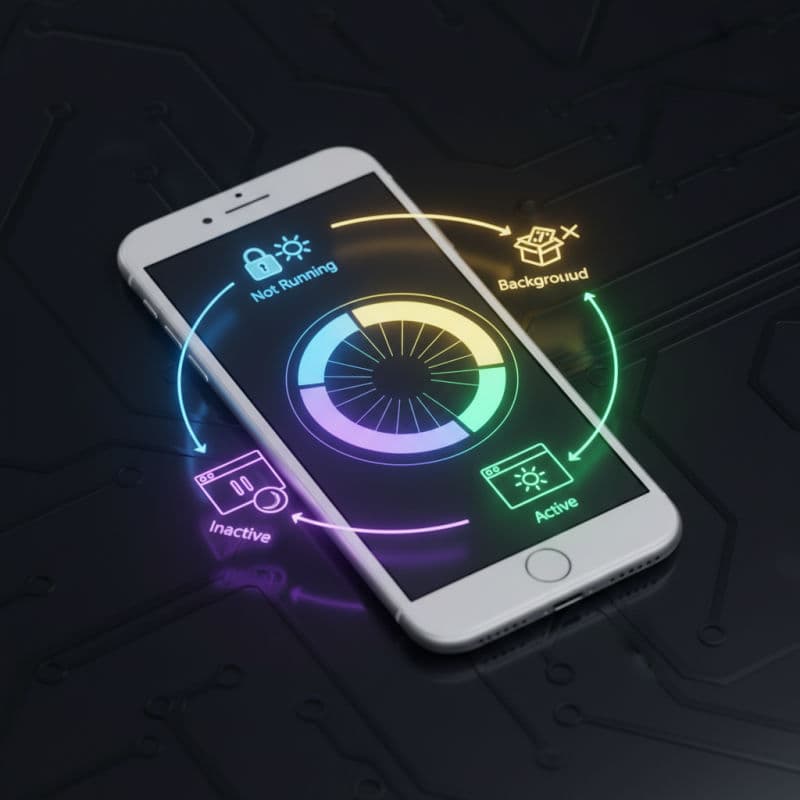
iOS defines several distinct app states, each with specific implications for your app's execution and resource access. Understanding these states is foundational to building well-behaved iOS applications. Let's break down the main states:
- Not Running: The app is not launched or has been terminated by the system or the user.
- Inactive: The app is running in the foreground but is not receiving events. This is typically a brief transitional state, for example, when a phone call or a message arrives, temporarily obscuring your app's UI. The app is still on screen, but it's not active.
- Active: The app is running in the foreground, receiving events, and fully interacting with the user. This is the normal operating state for a foreground app.
- Background: The app is no longer on-screen, but it's still executing code. This state allows your app to finish important tasks, save user data, or perform background fetches. An app might enter this state when the user switches to another app or returns to the Home screen. Some apps can request extended background execution time or specific background modes (like location updates or audio playback).
- Suspended: The app is in the background and not executing any code. The system moves apps to this state to free up memory. While suspended, an app remains in memory but cannot execute instructions. If the system needs more memory, it will terminate suspended apps without warning.
Responding to State Changes in UIKit
In UIKit, you primarily respond to state changes by implementing methods within your AppDelegate.swift file. The UIApplicationDelegate protocol defines a set of methods that are called at various points in your app's lifecycle. These methods provide opportunities to perform setup, teardown, save data, or prepare for interruption. You'll override these methods to execute your custom logic.
Here's a common set of UIApplicationDelegate methods you'll use:
application(_:didFinishLaunchingWithOptions:): Called when the app has finished launching. This is a primary setup point.applicationWillEnterForeground(_:): Called when the app is about to move from the background to the foreground.applicationDidBecomeActive(_:): Called when the app becomes active, from either an inactive or background state.applicationWillResignActive(_:): Called when the app is about to move from the active to the inactive state, often due to an interruption like a phone call.applicationDidEnterBackground(_:): Called when the app itself moves from the foreground (active or inactive) to the background.applicationWillTerminate(_:): Called when the app is about to be terminated. This method might not be called in all scenarios, especially if the app is suspended and then terminated by the system.
Note that with the introduction of Scenes in iOS 13, some lifecycle events are now handled in UISceneDelegate methods, especially for apps supporting multiple windows. The AppDelegate still manages 'process-level' events like launch and termination, while SceneDelegate handles 'scene-level' events like scene activation, deactivation, and backgrounding.
Handling App States in SwiftUI (iOS 14+)
SwiftUI, especially with its App protocol in iOS 14 and later, provides a more declarative way to observe and react to app state changes. Instead of AppDelegate methods directly, you use environment values and ScenePhase to detect when your app moves between active, inactive, and background states.
The @Environment(.scenePhase) property wrapper is your primary tool in SwiftUI for observing lifecycle events. It provides a ScenePhase enum value (which can be active, inactive, or background) that changes as your app transitions through its lifecycle.
You can use onChange(of:perform:) modifier to trigger actions when scenePhase changes. This allows you to perform operations like saving data, pausing animations, or refreshing content directly within your views or the App structure.
For more complex background tasks or specific AppDelegate functionalities not directly exposed by ScenePhase, you might still need to integrate an AppDelegate adapter or use UIApplication notifications in SwiftUI. You can do this by using UIApplicationDelegateAdapter in your App structure or by observing NotificationCenter publishers within your views.
Critical Considerations for App State Management
Proper app state management is not just about responding to events; it's about making judicious decisions at each transition. Here are some critical considerations:
- Data Persistence: Always save critical user data when your app enters the background or resigns active status. Although
applicationWillTerminatemight be called, it's not guaranteed, especially if your app is suspended and then purged from memory. Use methods likeUserDefaults, Core Data, or saving to files. - Resource Management: Release expensive resources (e.g., large images, network connections, location services, video streams) when entering the background to conserve memory and battery. Reacquire them when becoming active again.
- Background Execution: If your app needs to perform tasks in the background (e.g., download content, process location updates, play audio), you must explicitly declare background modes in your target's capabilities. Be mindful of battery consumption and system limits.
- UI Updates: Your UI should generally not update in the background. When returning to the foreground, check if any data has changed and refresh your UI accordingly.
- Notifications: Leverage
NotificationCenteror customCombinepublishers to communicate state changes throughout your app, especially in UIKit where theAppDelegateis centralized. SwiftUI's@Environmentprovides a more direct way. - Testing: Thoroughly test your app's behavior during state transitions. Simulate various scenarios, such as receiving a phone call, locking the device, switching to other apps, and force-quitting your app, to ensure it handles everything gracefully.
By following these guidelines, you can ensure your iOS applications are performant, reliable, and provide an excellent user experience, irrespective of which state the operating system places them in.
Common Interview Questions
What's the main difference between 'Inactive' and 'Background' app states?
An app in the 'Inactive' state is still visible on the screen but is temporarily not receiving events (e.g., due to an incoming call). It's a brief transitional state. An app in the 'Background' state is no longer visible on screen at all, but it might still be executing code for a limited time to complete tasks, or it might be running with specific background modes enabled. Most apps transition from 'Active' to 'Inactive' then to 'Background' when the user switches apps or goes to the Home screen.
When should I save user data and why is `applicationWillTerminate` not always reliable for this?
You should save critical user data whenever your app transitions to the 'Background' state (e.g., in `applicationDidEnterBackground` for UIKit or when `scenePhase` changes to `.background` in SwiftUI). This is because `applicationWillTerminate` is not guaranteed to be called. If the system needs memory, it might terminate your app while it's in the 'Suspended' state, without invoking `applicationWillTerminate`. Therefore, saving data when entering the background ensures data integrity even if your app is later terminated unceremoniously.
How can I run code in the background for an extended period in iOS?
Extended background execution is generally restricted by iOS to conserve battery and resources. However, you can request specific background modes in your app's capabilities, such as 'Audio, AirPlay, and Picture in Picture', 'Location updates', 'Voice over IP', or 'Background fetch'. For short, finite tasks, you can use `UIApplication.shared.beginBackgroundTask(withName:expirationHandler:)` to ask for a few extra seconds to complete a task before the app is suspended. For more complex periodic tasks, you might consider using `BackgroundTasks` framework (available from iOS 13+) for deferrable background tasks rather than keeping your app running continuously.